A shipment often has three numbers: the container number, the booking number and the bill of lading (B/L) number. You can give BerthTime all of them for the same shipment.
Why it helps
Some carriers say more about a booking or a B/L than about a container. For example, with only a container number, COSCO shows just the latest status. With the booking number, you also see every ship, the ports on the way and the arrival date.
When a shipment knows its booking or B/L, BerthTime asks the carrier with the number that gives the most. If that number does not work, it goes back to the container number. It is still one shipment, and you are not charged twice.
Add the numbers to a shipment you already track
- Open the shipment.
- Find the Identifiers card.
- Type the Booking or the Bill of lading number and click Add.
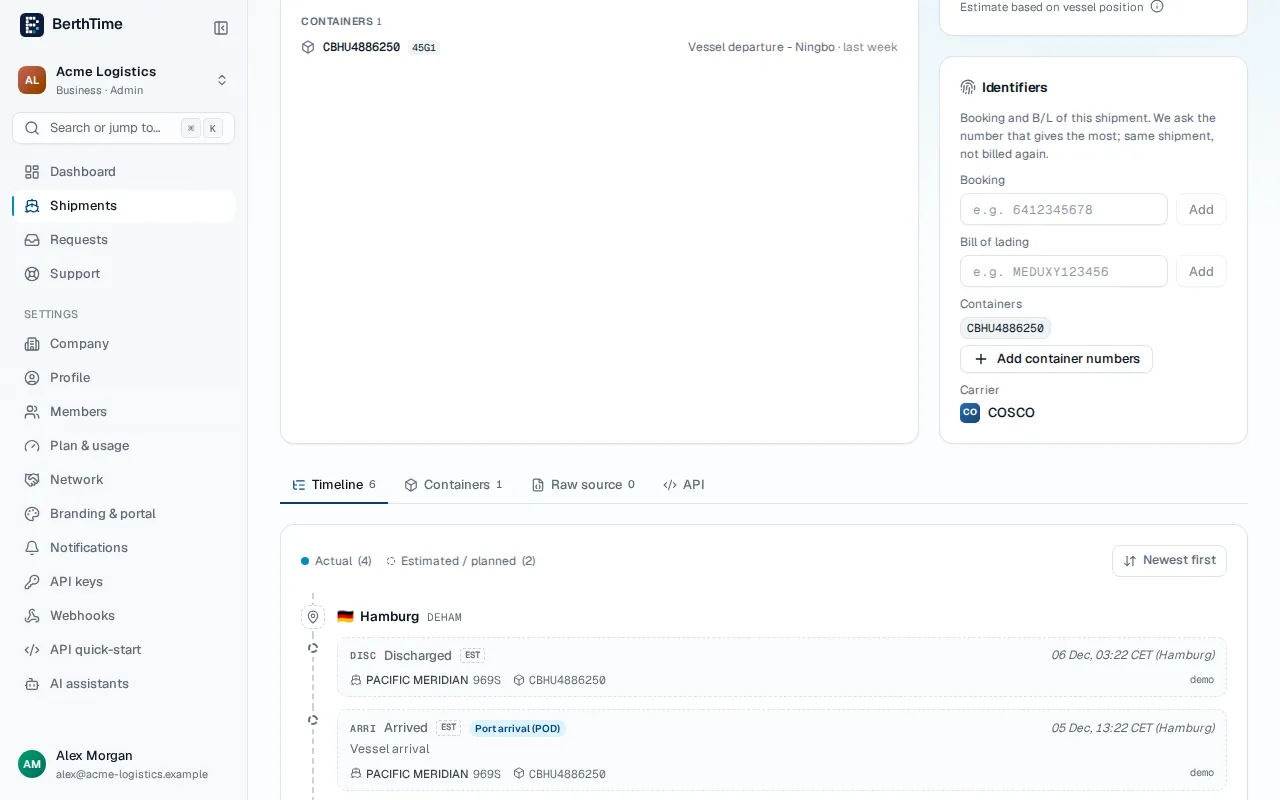
BerthTime updates the shipment right away with the new number. To fix a number, click the pencil next to it, change it and click Save. To take it off, click the × next to it.
Add them when you start tracking
- Click Track shipments and type the container number.
- Open More references.
- Fill in the Booking and the B/L, then click Track.
More references shows when you add one shipment at a time. To add many shipments with their numbers, use a spreadsheet with the columns container, booking and bl. A row with all three becomes one shipment that knows all its numbers. See how to add many shipments at once.
When tracking fails
If the carrier does not find your number, the shipment page shows a box with Add another identifier. Give another number of the same shipment there, like the booking or a container. BerthTime tries it at once.