You do not need to add shipments one by one. You can paste a long text, or upload a spreadsheet.
Paste a whole email
- Click Track shipments.
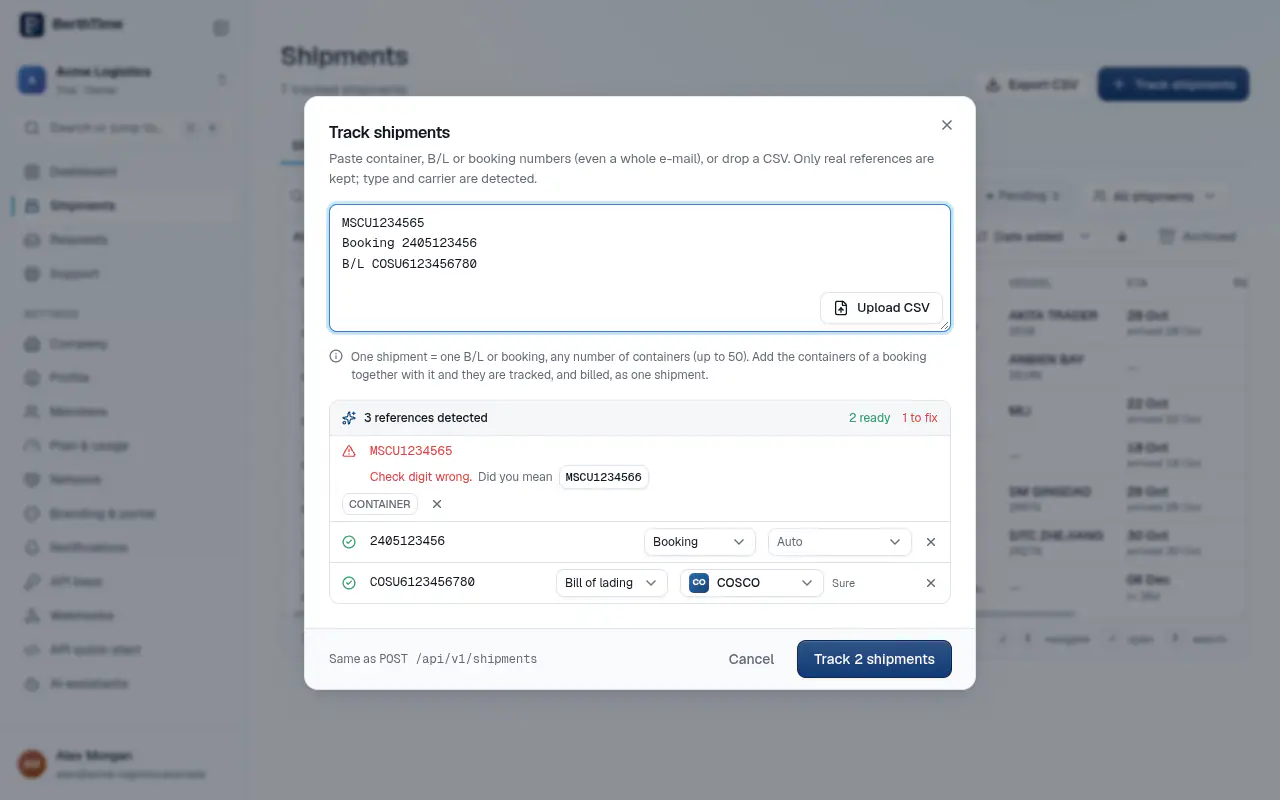
- Copy the full text of an email, a booking confirmation or a report, and paste it in the box.
- BerthTime picks out the container, B/L and booking numbers. It ignores the rest of the text.
- Check the list. At the top you see how many numbers are ready, how many are to fix, and how many words were ignored.
- Remove any line you do not want with the × button, then click Track (the button shows how many shipments it adds).
Upload a spreadsheet (CSV)
You can also upload a file from Excel or Google Sheets. Save it as CSV first (File > Save as > CSV). A plain .txt file also works.
- Click Track shipments.
- Click Upload CSV, or drag the file into the box.
- Check the list, then click Track.
The file can be up to 2 MB.
Columns BerthTime understands
Put the column names in the first row. Use names without digits. Upper or lower case does not matter.
- container: the container number
- booking: the booking number
- bl: the bill of lading number (also bill of lading or B/L)
- customer_reference: your own reference, like a PO number (also PO or your ref)
- tags: words to group your shipments, like urgent. Put several tags in one cell with a space between them.
- share_with: the @handle of a company you are connected with, to share the shipment with them
You need at least one of container, booking or bl. The other columns are optional. Columns with other names are skipped.
Here is a small example:
| container | booking | bl | customer_reference | tags |
|---|---|---|---|---|
| MSCU4419862 | PO-1001 | urgent | ||
| CSNU1234560 | 6412345678 | COSU6412345678 | PO-1002 |
Commas, semicolons and tabs all work as separators.
A row with a container and its booking or B/L becomes one shipment that knows all its numbers. BerthTime then asks the carrier with the number that gives the most. See how to add the booking and B/L.
After you click Track
You see a short summary: how many shipments were added, how many were already tracked, and how many were rejected. Numbers with a mistake are never added. Fix them in the list first.
Containers that belong to the same B/L or booking are grouped into one shipment, up to 50 containers. Click Track separately if you prefer one shipment per container.