One shipment can carry many containers. The Shipments list shows one line per shipment. When you need to see each container, switch the list to Containers.
Switch the view
- Go to Shipments.
- At the left of the filter bar, click Containers. Click Shipments to go back.
Next to the switch, you see how many containers the list holds. A shipment with two containers now takes two lines. A shipment with no container yet still takes one line, marked No container yet, so nothing disappears.
BerthTime remembers your choice the next time you open the list.
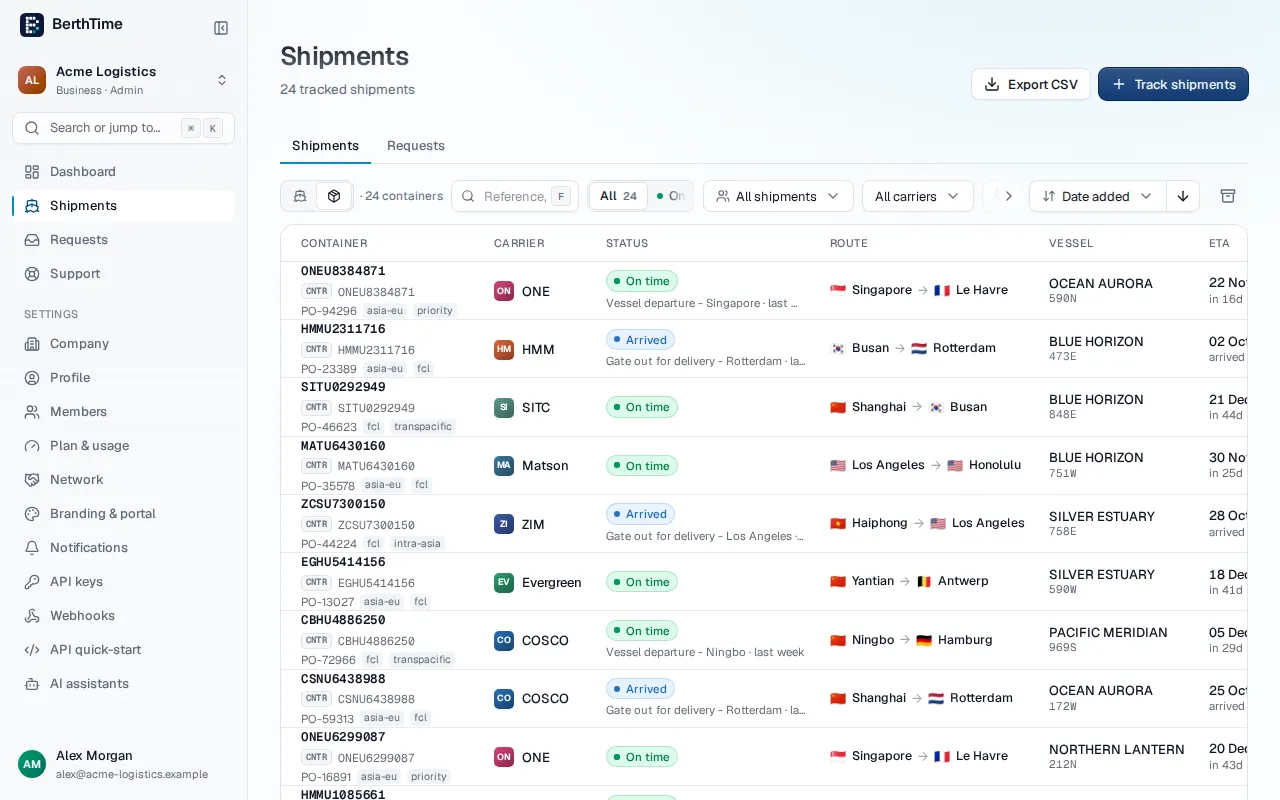
What each line shows
- The container number first.
- The shipment's number (B/L, booking or container) and the carrier.
- The container's latest status and when it happened.
- The arrival date and the status of the shipment.
- Your tags and remarks.
Click a line to open the shipment. It opens on the Containers tab, with that container highlighted.
Filters, search and export
The search, the filters and the sort work as usual. They apply to the shipment, so when one container of a shipment matches, all its containers show.
The counts in the status filters still count shipments, not containers.
When you export the list as CSV in this view, you get one line per container, with extra columns for the container, its size, its latest status and its remark.