Click any shipment in the Shipments list to open its page. Here is what you see, from top to bottom.
The top of the page
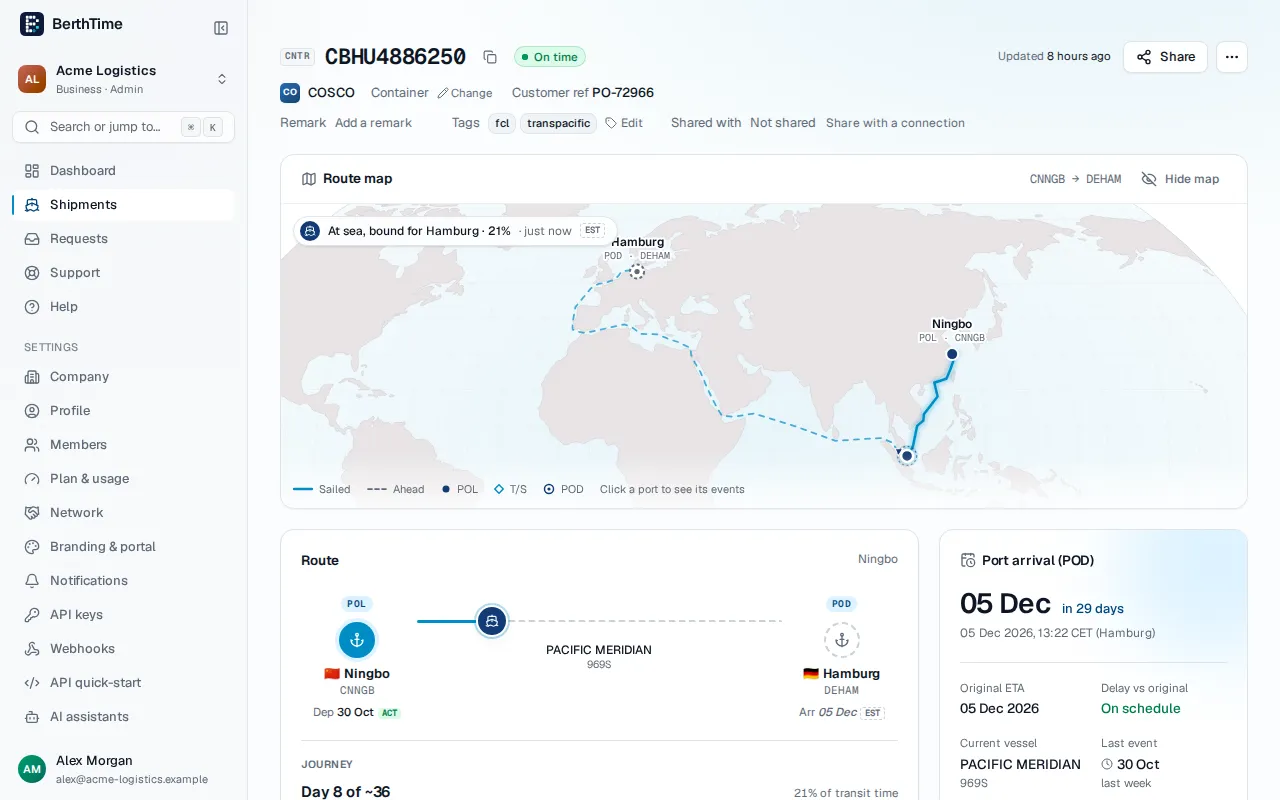
At the top you find the number, its type (container, B/L or booking) and the status:
- On time: the shipment is moving as planned.
- Delayed: the arrival date is later than the first date BerthTime saw.
- Arrived: the shipment has reached its destination.
- Pending: BerthTime is waiting for the first news from the carrier.
- Tracking failed: the carrier did not give any news for this number. Click Ask us why to get help. See how to get help when a shipment does not update.
Next to it you see the carrier. If it says set manually, someone in your team chose the carrier by hand. Click Change if the number type is wrong.
You also see when the shipment was last updated and when the next update is planned. BerthTime updates every shipment automatically in the background. You never need to do anything to get the latest news.
Route and journey
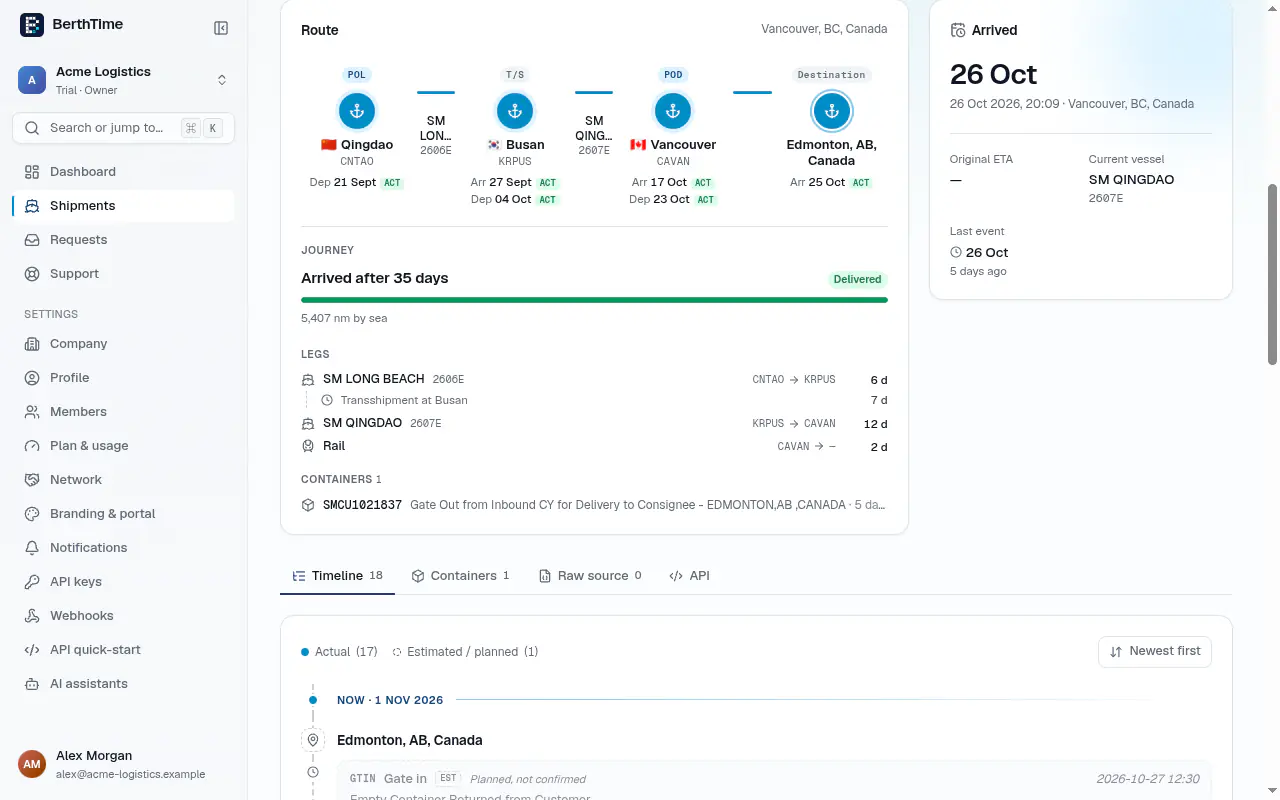
The Route map shows the trip on a map. The Route card lists each stop: the port of loading, any port where the cargo changes ship (transshipment), the port of discharge and the final place.
The Journey part tells you where the shipment is in its trip: not departed yet, day 12 of about 30, or arrived. Under Legs you see each ship and the time spent on each part.
Estimated arrival
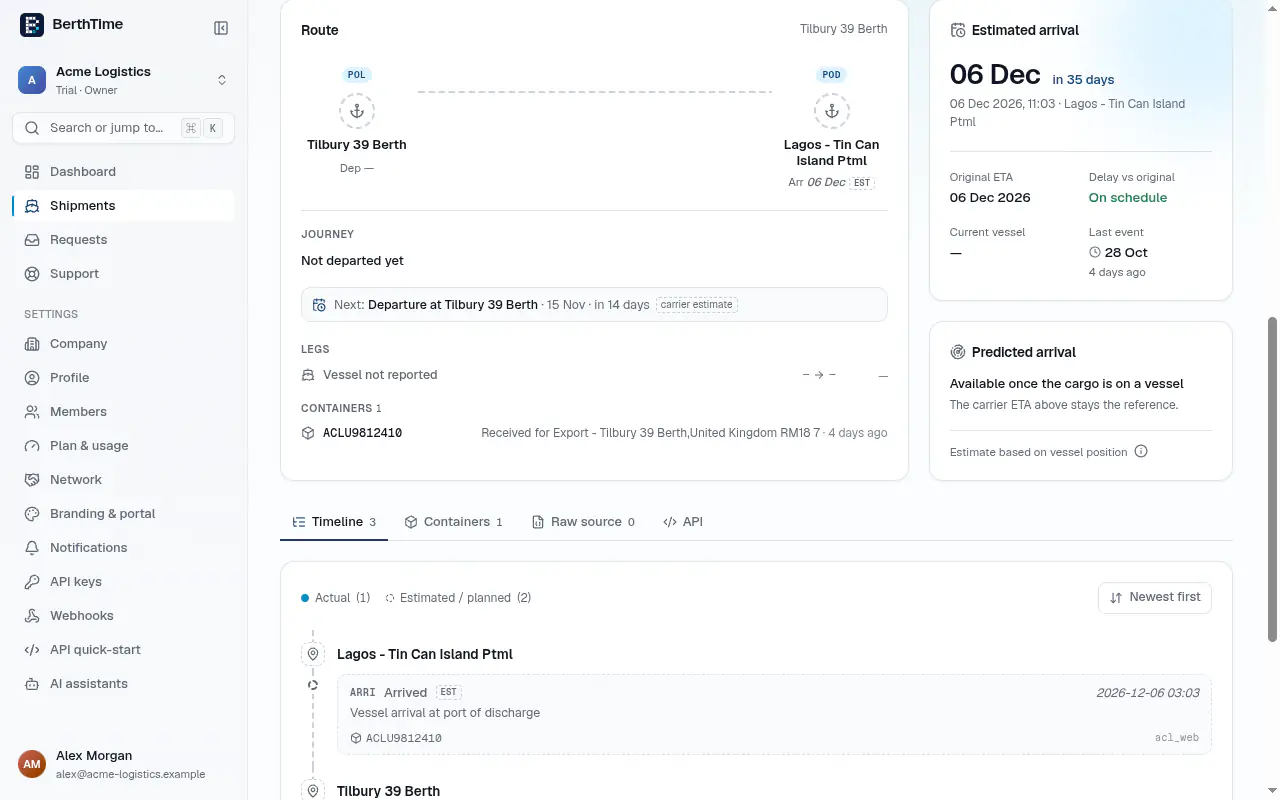
The Estimated arrival card shows the date the shipment should arrive and how many days are left. Once the shipment is in, it says Arrived.
- Original ETA is the first arrival date BerthTime saw.
- Delay vs original shows the difference, for example +2d. It says On schedule when the dates match.
Why does the arrival date change?
The carrier updates its schedule as the trip goes on: bad weather, a busy port, a ship change or a late departure can move the date. BerthTime shows the latest date and keeps the original one.
When the ship is at sea, you may also see a Predicted arrival card. It is our own estimate based on where the ship is. The carrier's date stays the reference.
The timeline
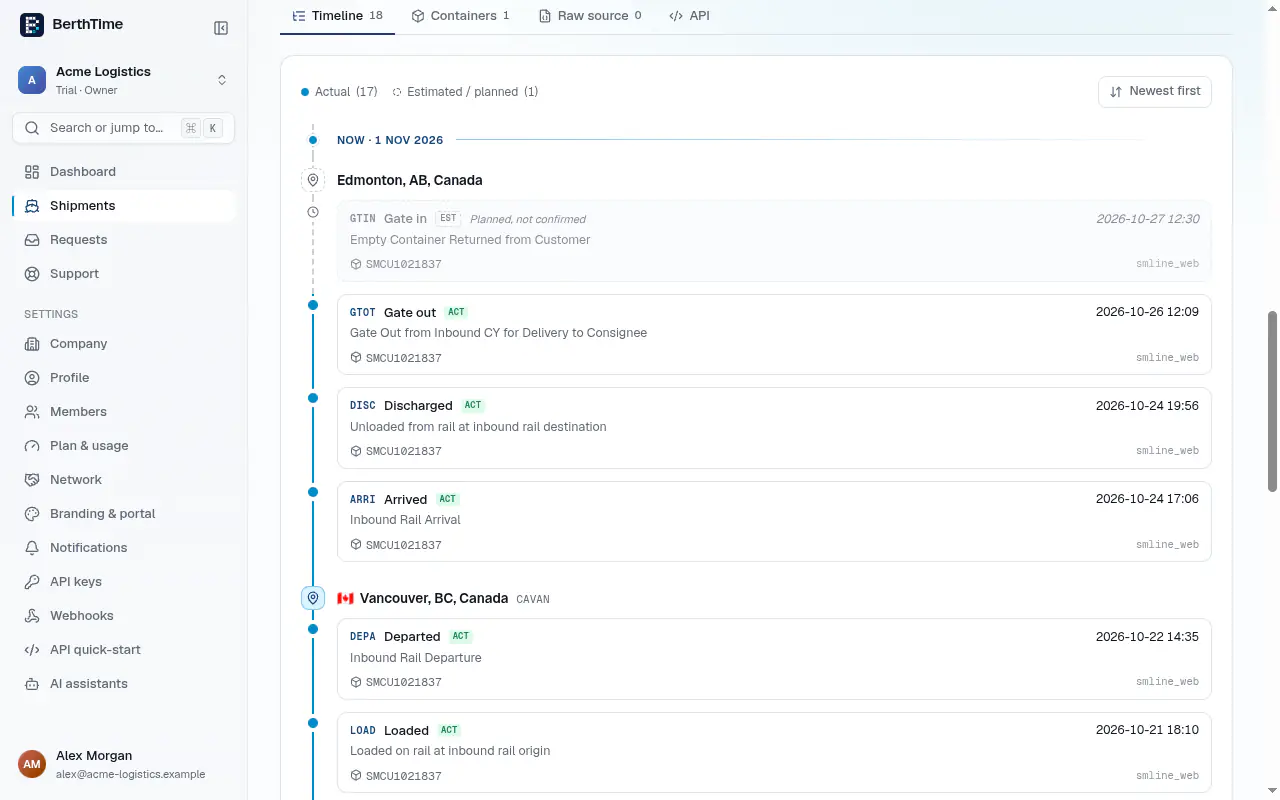
The Timeline tab lists every event, like Loaded, Departed, Arrived or Gate out.
- ACT (actual): it really happened.
- EST or PLN (estimated or planned): it is expected. If a planned event is late and not confirmed, it says Planned, not confirmed.
Use Newest first to change the order.
More on the shipment page
- Identifiers: add the booking and the B/L of the shipment. See how to add the booking and B/L.
- Remark and Tags: notes and labels for your team. See how to use remarks and tags.
- Containers tab: every container of the shipment, with its latest status and its own note. To see containers in the list, see how to see one line per container.