Everyone in your company can use the same BerthTime account, with their own login. Every plan includes unlimited users. Go to Settings > Members.
Invite a colleague
- Click Invite people.
- Type their Email.
- Choose a Role (see below).
- Click Send invitation.
We email them a link to join your company. You can also copy the link and send it yourself, for example in a chat.
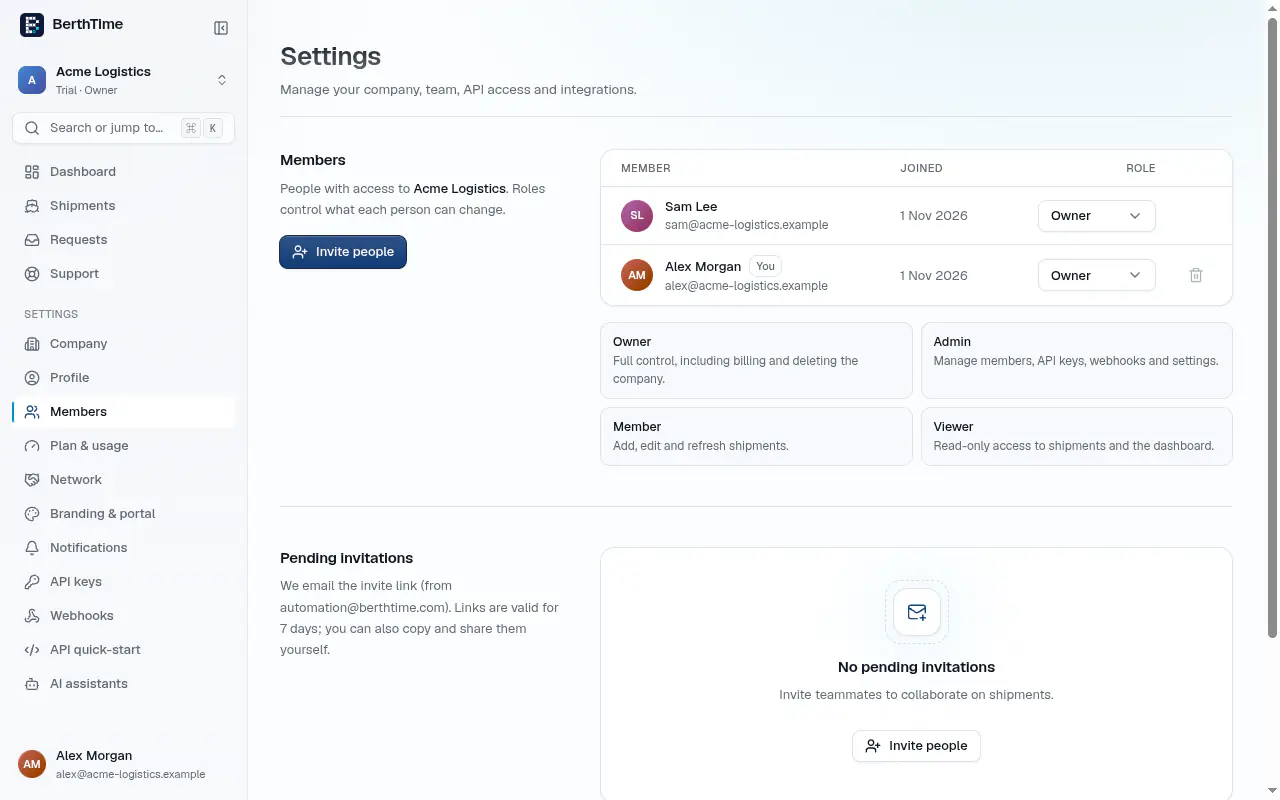
The four roles
- Owner: full control, including billing and deleting the company.
- Admin: manages members and all settings.
- Member: adds and edits shipments.
- Viewer: read-only access to shipments and the dashboard.
Choose the smallest role that lets the person do their work. A Viewer is a good choice for a colleague who only needs to check arrival dates.
Pending invitations
Invitations you sent but that are not accepted yet appear under Pending invitations. Each one shows when it was sent and when it expires. Links are valid for 7 days.
- To send the link again, click Invite link to copy it and share it yourself.
- To cancel an invitation, click the revoke button, then Revoke. The link stops working.
- If an invitation has expired, invite the person again.
Only owners and admins can see and manage invitations.
Change a role or remove someone
- To change a role, pick a new one in the Role list next to the person's name.
- To remove someone, click the bin icon, then Remove member. They lose access at once. What they did before stays in the history.
Several companies
You can belong to more than one company, for example two offices with separate shipments. Switch between them from the company name at the top of the left menu. To create a new one, go to Settings > Company and click New company. You become its owner.