There are two ways to share. A public link works for anyone, even without an account. A connection links two companies in BerthTime, so you can share shipments with each other.
Share a public link
- Open the shipment and click Share. In the Shipments list, you can also use the row menu and choose Share tracking link.
- Click Create link.
- Choose what to show: the container numbers, and your customer reference (off by default, because it is often internal).
- Choose how long the link works: never expires, or 7, 30 or 90 days.
- Copy the link, show a QR code, or use Share… on your phone.
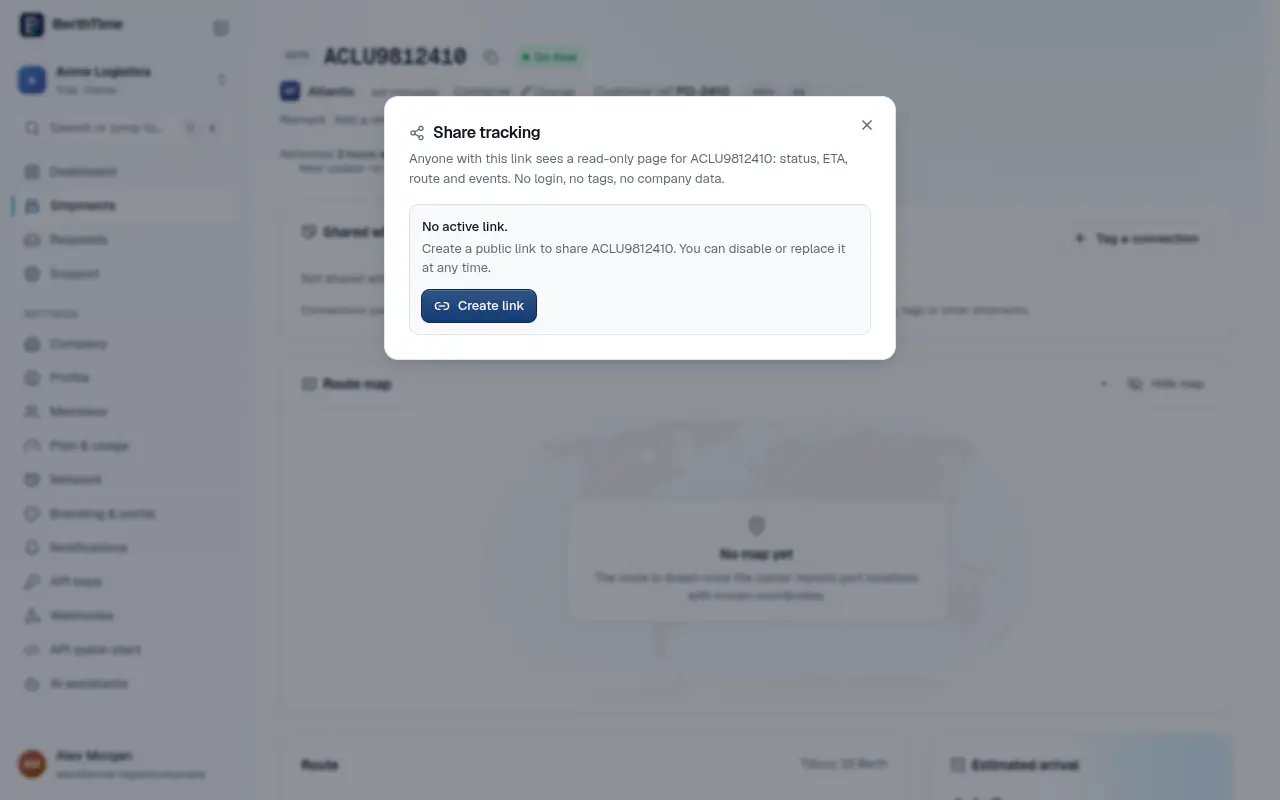
The person who opens the link sees a read-only page with the status, the arrival date, the route and the events. They do not need to log in. They never see your tags, your notes or your other shipments.
To stop sharing, click Disable link. Regenerate link gives a new address and the old one stops working at once.
Connect with a customer or supplier
Go to Settings > Network.
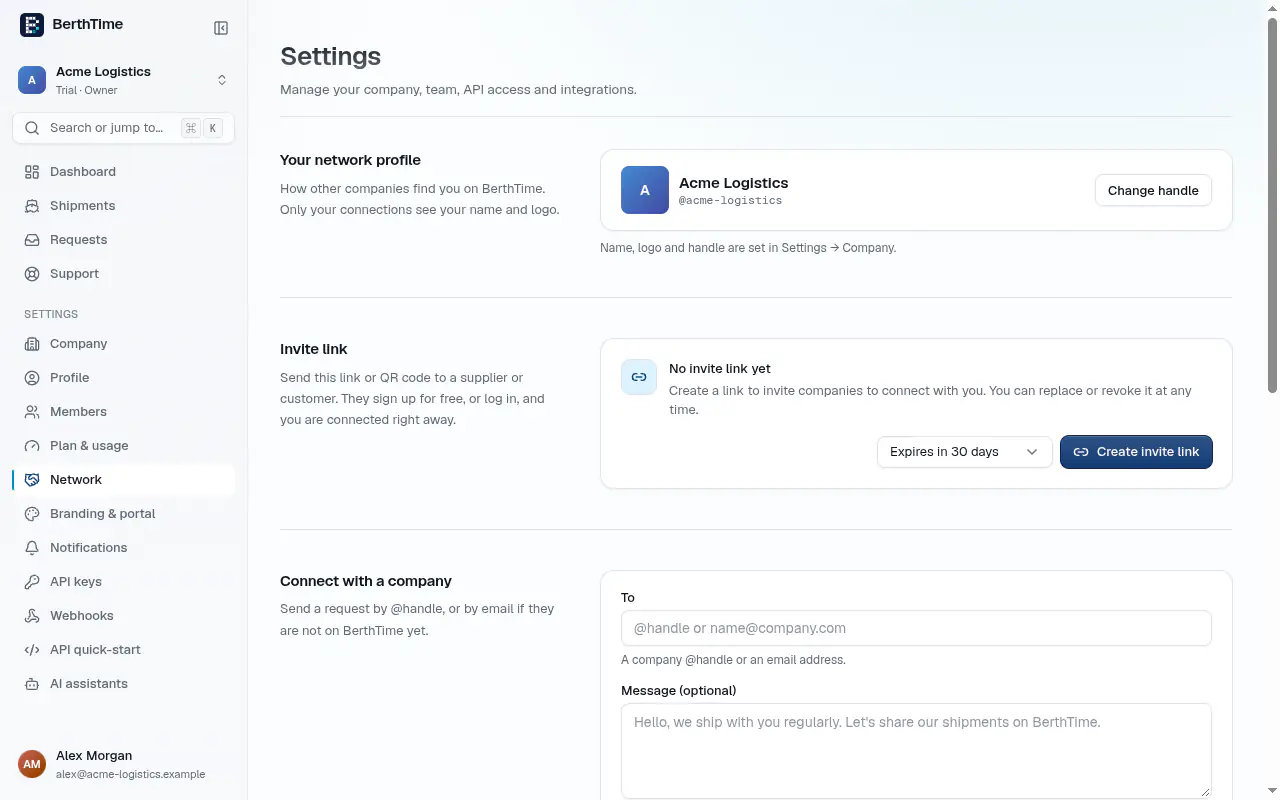
Your handle is your company's name on BerthTime, like @acme-logistics. Other companies use it to find you. Owners and admins can set it with Set a handle.
You can connect in two ways:
- Invite link: click Create invite link and send the link or QR code to your partner. They sign up for free, or log in, and you are connected right away.
- Request: under Connect with a company, type their @handle, or their email if they are not on BerthTime yet. Add a message if you like, then click Send request. They accept it on their side.
Requests you receive appear under Requests. Click Accept or Decline.
Share shipments with a connection
- Open the shipment.
- In the Shared with card, click Tag a connection.
- Choose the companies and confirm.
Your connections see the shipment in their own account, read-only and for free. They never see your remark, your tags or your other shipments. Click Stop sharing to undo it.
You can also share while adding shipments: fill in Share with connections in the Track shipments window.
Tracking requests
Sometimes your partner should do the tracking, on their own plan. In the Track shipments window, turn on Don't track: ask a connection to track it. The shipment is saved as a draft, not tracked and not billed to you.
Your partner sees the request on the Requests page and clicks Accept tracking or Decline. Once accepted, the shipment is tracked and both of you see it.