Remarks and tags are for your team only. People you share a shipment with never see them, and they never appear on a public tracking link.
Remarks on a shipment
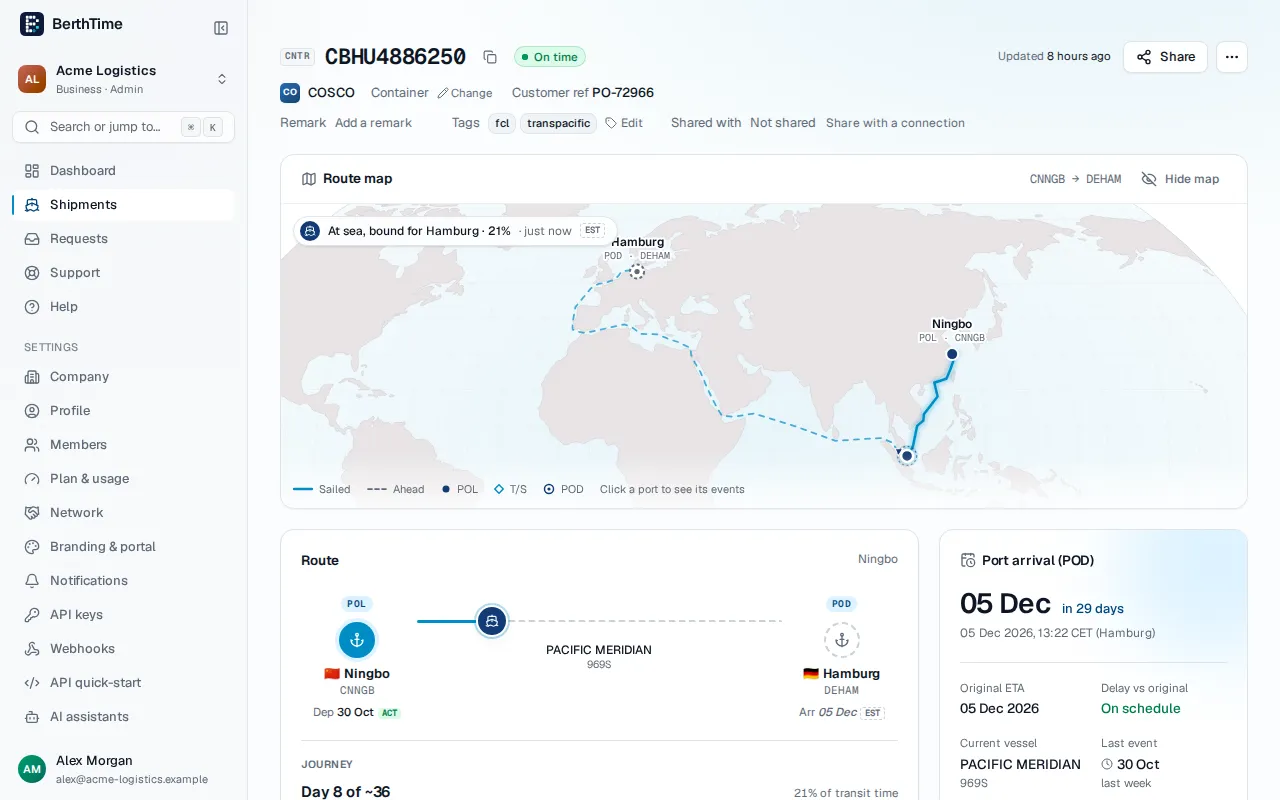
A remark is a short note, like a file number or a reminder. It can be up to 500 characters.
- Open the shipment.
- Next to Remark, click Add a remark (or click the existing text to change it).
- Type your note and press Enter, or click outside the box. Press Esc to cancel.
The remark also shows in the Shipments list, and the search finds it.
Remarks on a container
Each container can have its own note, for example "Reefer, check the temperature".
- Open the shipment and go to the Containers tab.
- In the Remark column, click Add a note next to the container.
- Type your note and press Enter.
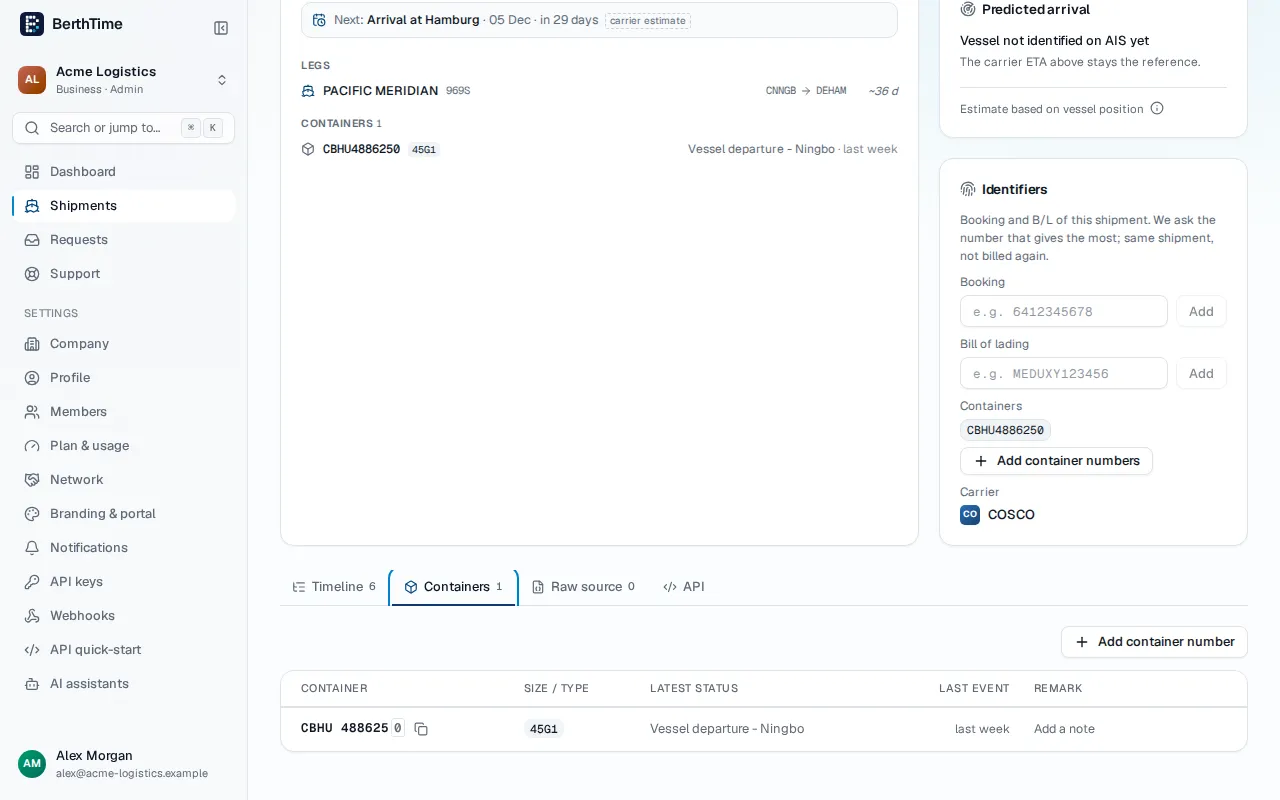
Container remarks show in the Containers view of the list, and the search finds them too.
Tags
Tags group your shipments, like urgent, customer-a or asia-eu. A shipment can have up to 20 tags.
To add a tag:
- On the shipment page, next to Tags, click Add tag (or Edit when it already has tags). Type a tag and press Enter. BerthTime suggests tags you already use.
- In the Shipments list, open the row menu (⋯) and choose Tags….
To remove a tag, click the × on it.
Find shipments by tag
In the Shipments list, use the Tag filter and choose a tag. Only the shipments with that tag stay in the list. If you see No tags yet, add a tag to a shipment first.
You can also click a tag on a shipment page to see all shipments with that tag.