You can follow a shipment with the number you already have. That can be a container number, a bill of lading (B/L) number or a booking number.
Add a shipment
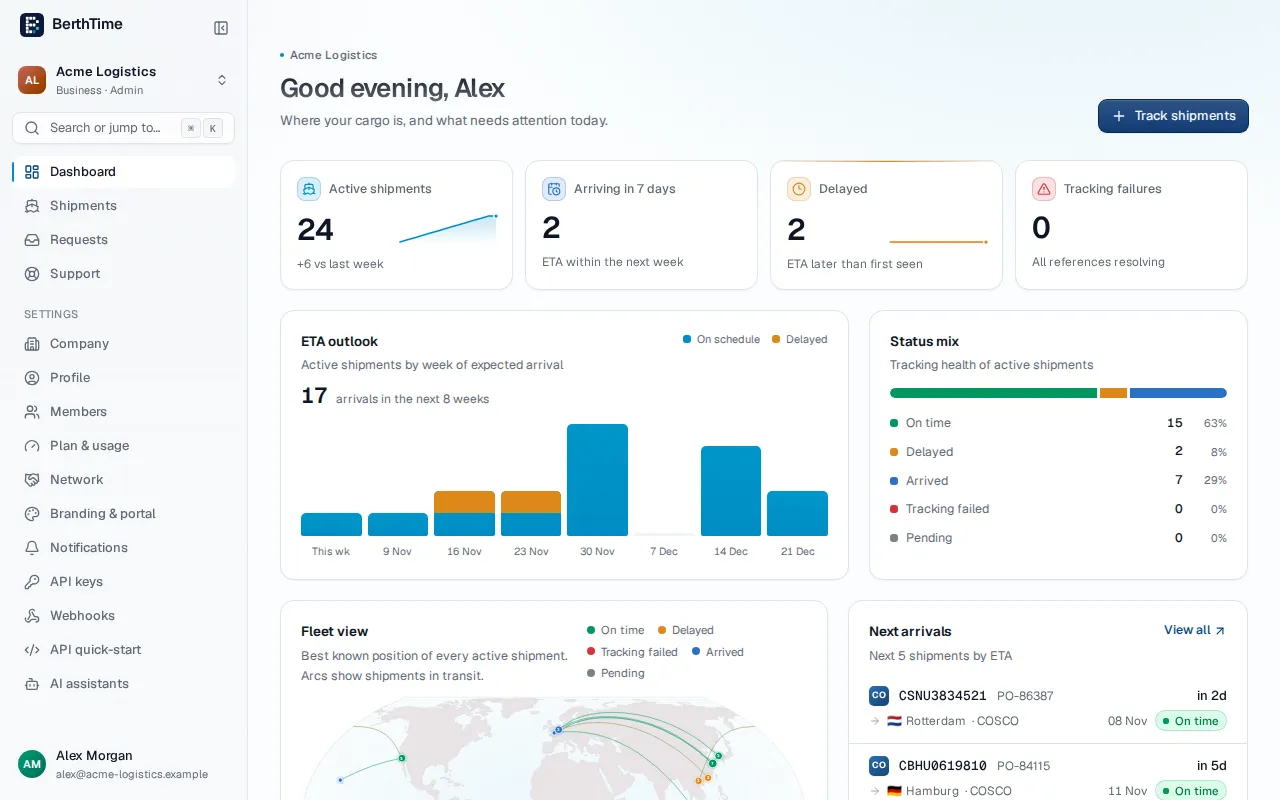
- Sign in to BerthTime. You land on the Dashboard.
- Click Track shipments at the top right.
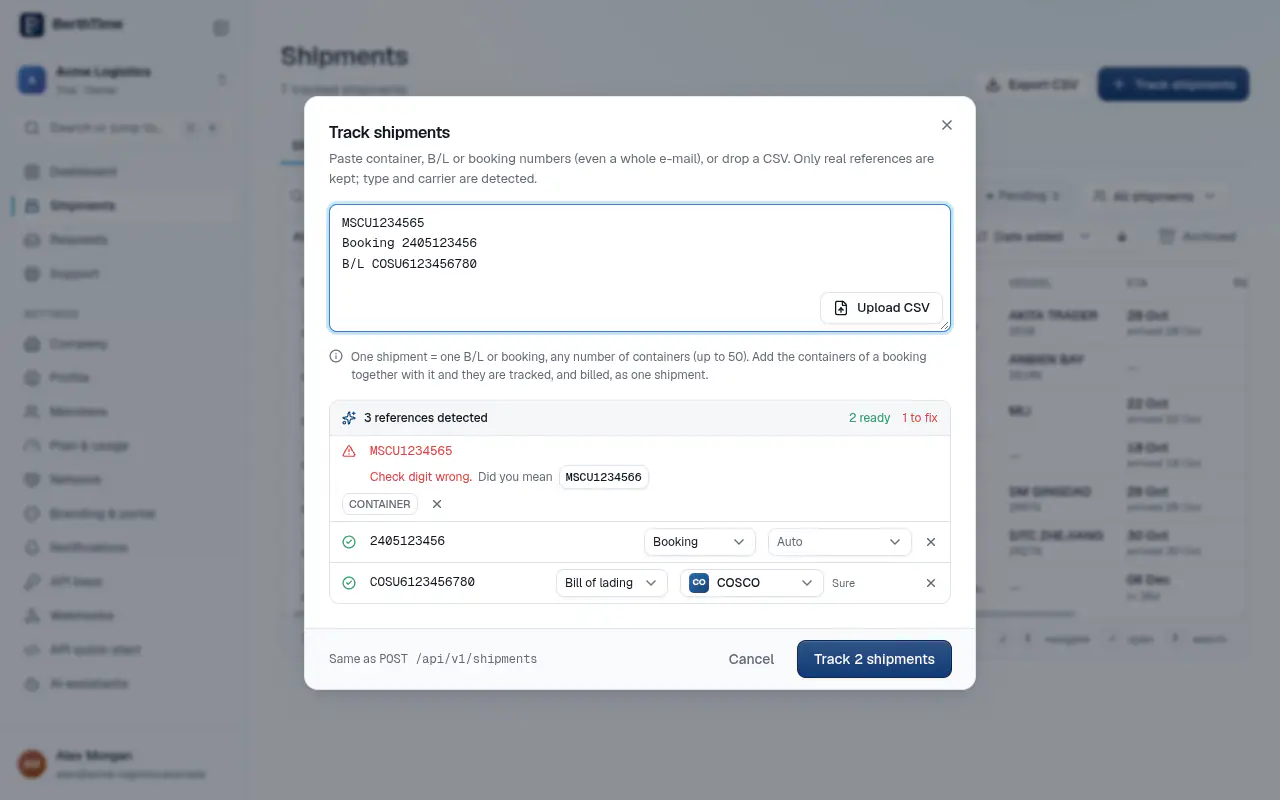
- Type or paste your number in the box. You can paste several numbers at once, one per line.
- BerthTime reads the numbers and shows them in a list below the box. For each one, it shows what kind of number it is and which carrier it found.
- Do you also have the booking or the B/L of this shipment? Open More references and add them. BerthTime uses the number that gives the most news.
- Click Track 1 shipment (the button counts your shipments).
Check the carrier
Next to each number, the carrier is set to Auto. BerthTime finds the carrier from the number and tells you how sure it is: Sure, Likely or Guess.
If BerthTime is not sure, you may see Maybe followed by a carrier name. Click Use to accept it, or pick the right carrier from the list yourself.
Fix a container number
The last digit of a container number is a check digit. It proves the number was typed correctly. If it does not match, you see Check digit wrong.
Often BerthTime suggests the right number after Did you mean. Click the suggestion and it replaces your number. If there is no suggestion, compare the number with your documents and type it again.
What happens next
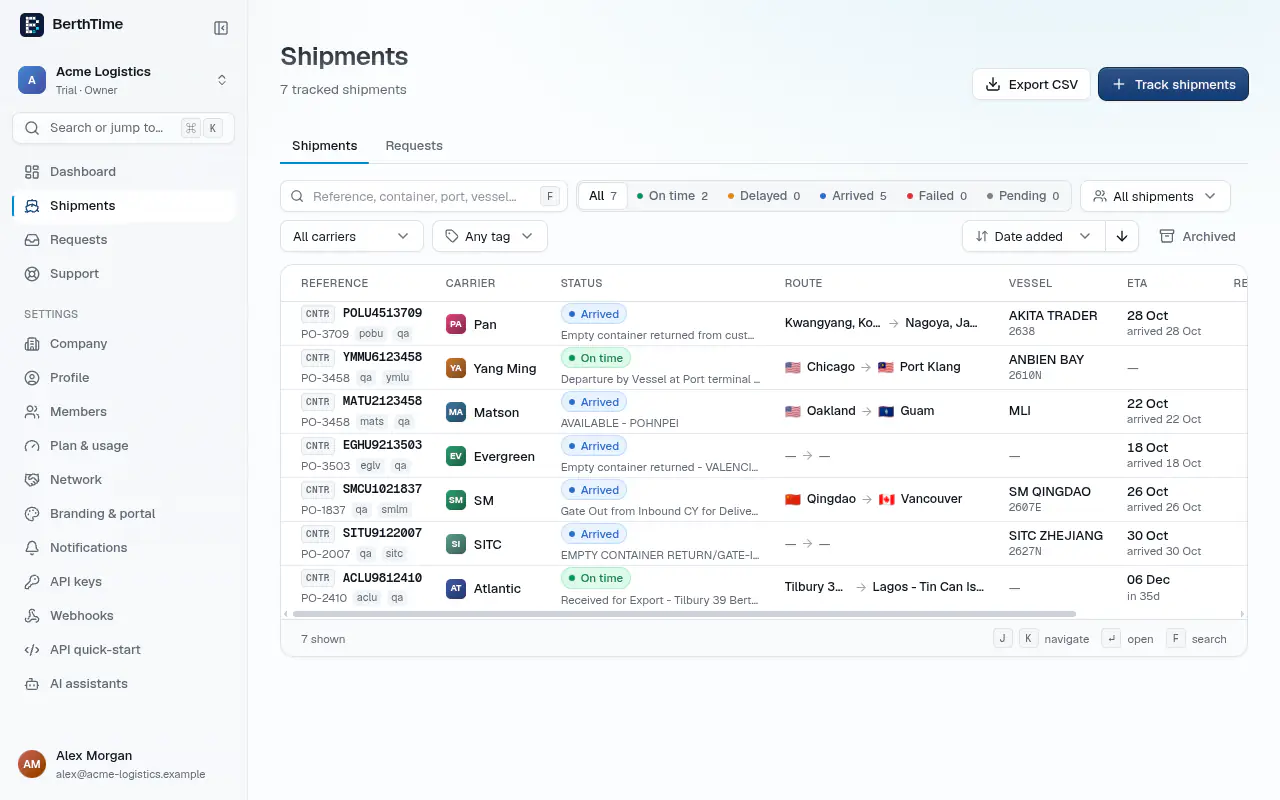
- If you added one shipment, its page opens. If you added several, you go to the Shipments list.
- At first, the status says Pending. BerthTime asks the carrier for news.
- The first update usually arrives within minutes. You then see the status, the route and the estimated arrival.
If a number you add is already tracked, BerthTime tells you and does not add it twice.
Next step: learn how to read the shipment page, or add many shipments at once.